How to Create Readable AI Posters and Consistent Product Images with Nano Banana 2.1
A practical workflow for typography, multi-reference composition, targeted edits, and 4K output.
AI image generation often fails in predictable ways: a poster looks polished but the headline is misspelled, a product changes shape between references, or a one-line edit redraws the entire scene.
Nano Banana 2.1 is useful when the job depends on readable text, multiple reference images, or a controlled edit. This guide shows a practical workflow for those cases using Nano Banana 2.1 on MixVio.
Disclosure: This guide is published by MixVio AI and describes the model as it is configured on MixVio.
1. Choose the right starting mode
Start with text-to-image when you are creating a new scene. Start with image edit when composition, identity, packaging, lighting, or another part of an existing image must survive the change.
That decision changes how you should write the prompt:
For a new image, describe the subject, composition, exact words, typography, lighting, and output format.
For an edit, state the requested change first, then list what must remain unchanged.
A vague edit prompt such as “make it better” gives the model too much freedom. A useful edit prompt creates a boundary around the change.
2. Build poster prompts around exact strings
For posters and product graphics, put every required line of copy in quotation marks. Then describe its role in the hierarchy.
Example prompt
Vintage concert poster, 2:3, warm sunset palette. Large headline: “SUMMER NIGHTS LIVE.” Smaller subline: “Riverside Park · Free Entry.” Bold retro typography, strong separation between text and background, silhouettes of a crowd at the bottom.
This prompt does four useful things:
It supplies the exact text.
It defines which line is primary and which is secondary.
It separates typography from the visual background.
It fixes the output shape before the scene is composed.
Use 2K or 4K when the design contains dates, labels, disclaimers, or other small text. At 1K, fine type has fewer pixels to work with and is more likely to blur.
After generation, inspect every character. Readable text is improved, but a final proofread is still part of the workflow.
3. Give every reference image a job
In image edit mode, Nano Banana 2.1 accepts 1–14 JPEG, PNG, or WebP images on MixVio. The cleanest way to use several references is to assign each upload a role by position.
Example prompt
Place the bottle from image 1 and the box from image 2 on the marble counter shown in image 3. Use soft morning window light. Keep both product labels unchanged. Preserve the bottle proportions and the box colors.
Avoid asking the model to infer why each image was uploaded. Explicit roles reduce ambiguity:
“image 1 is the product”
“image 2 is the packaging reference”
“image 3 supplies the environment”
“image 4 supplies the lighting direction”
Google’s prompt guidance mentions up to four characters and ten objects. Treat that as composition guidance, rather than a different upload limit. The practical limit on MixVio remains 14 images.
For products, preserve observable details in the prompt: label spelling, cap shape, materials, proportions, and brand colors. For people, name the features that matter and check faces and hands closely after generation.
4. Write precise edits as change-and-lock instructions
A reliable edit prompt has two parts:
Change: the one thing the model should modify.
Lock: the details that must stay the same.
Example
Change the background to pale sage green. Keep the model, outfit, pose, crop, facial features, and lighting unchanged.
For a packaging edit:
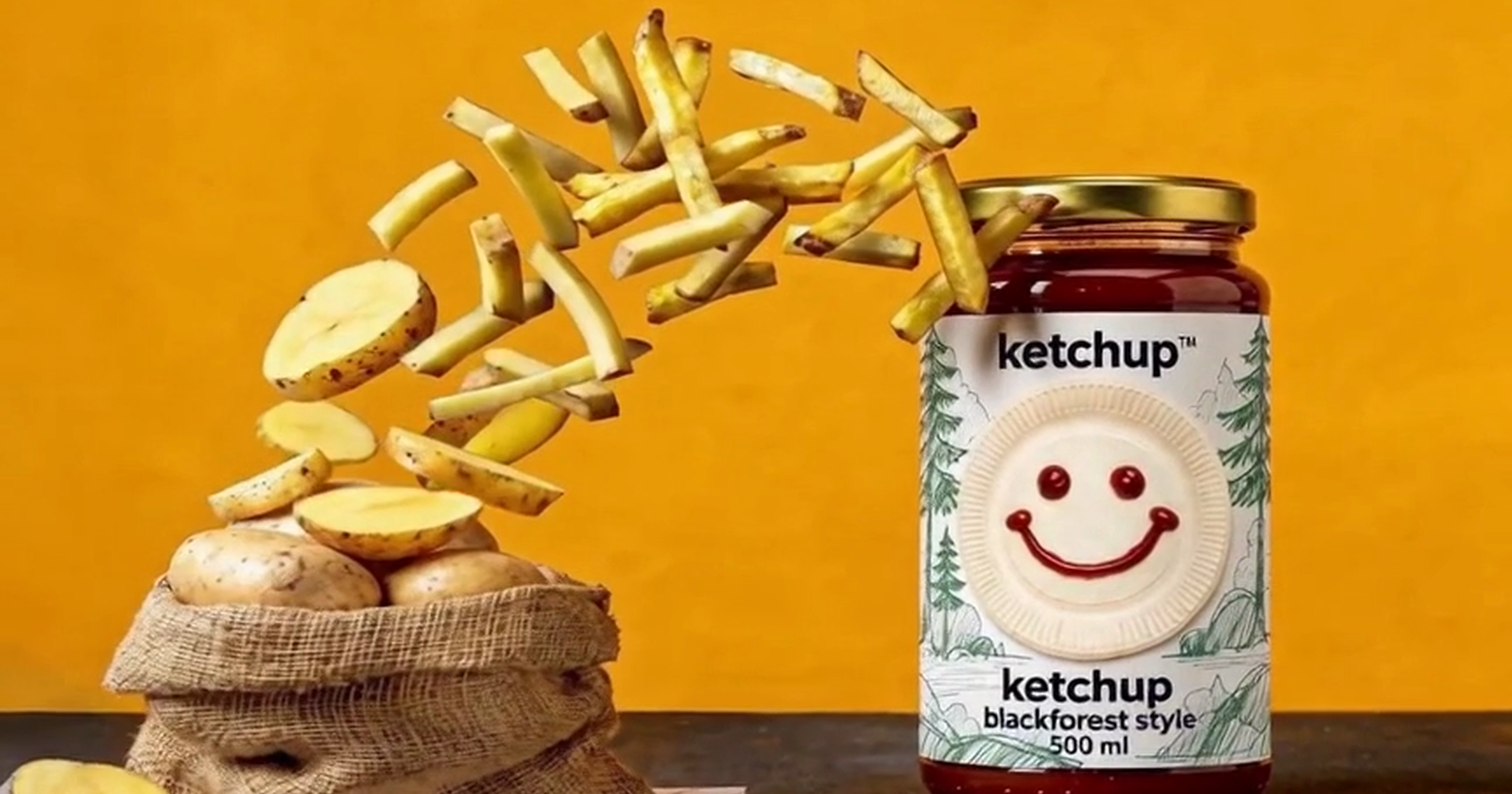
Replace only the headline on the front label with “NIGHT RENEWAL.” Keep the bottle shape, label layout, logo, colors, shadows, and camera angle unchanged.
If a result drifts, add concrete locks instead of adding general adjectives. “Keep the camera at eye level” is more actionable than “make it consistent.”
5. Match output settings to the destination
Nano Banana 2.1 supports 1K, 2K, and 4K output on MixVio. It also supports common landscape, square, portrait, and extreme aspect ratios.
A useful starting map is:
| Destination | Suggested ratio | Resolution |
|---|---|---|
| Website hero | 16:9 or 21:9 | 2K or 4K |
| Social post | 1:1 or 4:5 | 2K |
| Story or short-form cover | 9:16 | 2K |
| Poster | 2:3 or 3:4 | 2K or 4K |
| Panoramic strip | 4:1 or 8:1 | 2K or 4K |
The Thinking setting controls how much reasoning the model applies to the request. It is not a simple quality selector. Minimal can be enough for a straightforward variation; Medium is a sensible default; High is better reserved for prompts with several constraints.
Optional web search is most useful when an image depends on current real-world information. Leave it off for ordinary fictional scenes, product mockups, and controlled edits.
6. Validate the result before using it
Before exporting, check the image at 100% zoom:
Is every required word spelled correctly?
Did any label, logo, or product feature change?
Are faces, hands, and repeated objects consistent?
Did the edit preserve the locked details?
Is the crop appropriate for the destination?
Does small text remain readable at the final display size?
When something fails, revise only the relevant part of the prompt. For example, add an exact label string or another lock constraint instead of rewriting the whole scene description.
7. Estimate the run before generating
MixVio shows the exact credit estimate before each run. Current Nano Banana 2.1 pricing is:
1K: 6 credits, or 7 with web search
2K: 9 credits, or 10 with web search
4K: 12 credits, or 13 with web search
Creating and editing use the same schedule. Reserved credits are released when a run fails.
A sensible test sequence is to validate composition at 1K or 2K, then move to 4K for the final version when the text, references, and crop are working. Always check the estimate shown in the generator before submitting because product pricing can change.
A reusable prompt template
For a new image:
[Format and aspect ratio]. [Main subject and composition]. Exact headline: “[TEXT].” Subline: “[TEXT].” [Typography]. [Lighting]. [Background]. Keep the text clearly separated from detailed visual elements.
For an edit:
Change [one specific element]. Keep [identity, product shape, labels, pose, crop, lighting, colors, and any other fixed details] unchanged.
You can try these workflows on the Nano Banana 2.1 model page. New MixVio accounts currently receive 40 welcome credits valid for seven days, with no credit card required.