This tutorial builds a small Python helper that turns ordinary pixel rectangles into the JSON layout format that MOSS-Image accepts, then checks the result for the mistakes that quietly ruin a layout prompt. You can use it with any way of running the model, local or hosted.
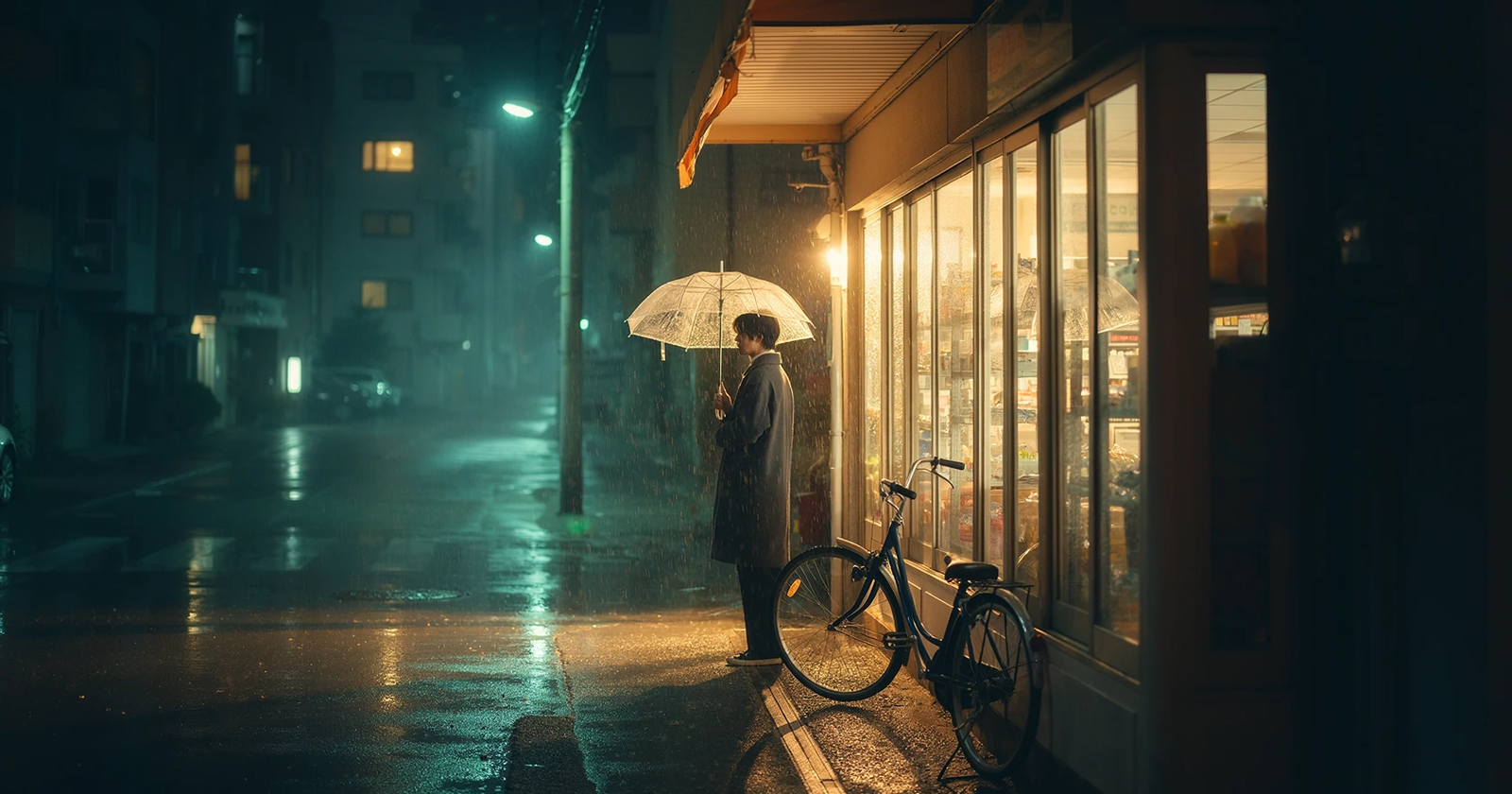
Disclosure up front: I drafted this with AI assistance and edited it by hand, and the images below are AI-generated outputs from MixVio's gallery for the model, shown at native size. The code is mine, and I ran every snippet before publishing.
Why bother with a script
MOSS-Image is an open text-to-image family from OpenMOSS with Base and SFT checkpoints and Apache-2.0 weights. Besides natural-language prompts, it accepts a structured layout: a summary block that describes the whole scene, and an items array where each element has a label, a caption, optional text and a bbox. The format is documented on the OpenMOSS project page and in the official README.
The layout format is precise, and that makes it easy to get wrong by hand:
- Boxes are
[y_min, x_min, y_max, x_max]. Most design tools hand you x first. - Coordinates are centre-based (
abs_centralized). On a 1024×1024 canvas each axis runs from -512 to +512, x grows to the right and y grows downward. For a W×H canvas, the README says to subtract W/2 from x and H/2 from y. - The coordinates must match the width and height you actually request.
Nothing errors when you get one of these wrong. You just get a poster with the headline in the wrong place, and you spend a run finding out why. So the job is to draw boxes the normal way, top-left corner plus width and height, and let code do the conversion.
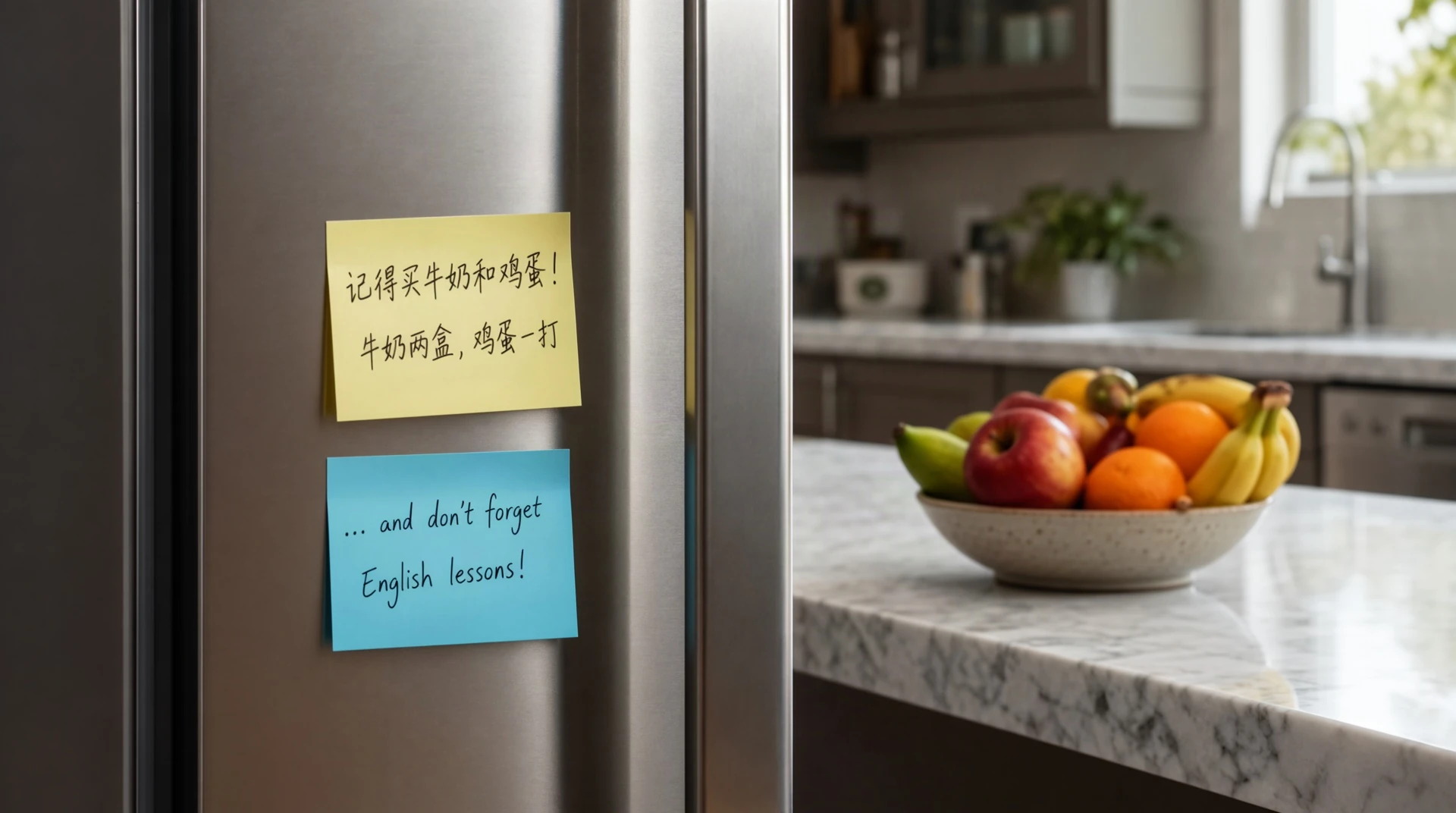 AI-generated MOSS-Image output from MixVio's gallery (1920×1072). Two text blocks, two objects, two scripts: the kind of frame where explicit positions help.
Step 1: the converter
Keep the canvas size in one place so the conversion and the check can never disagree.
W, H = 1024, 1024  # must match the width/height you request


def to_bbox(x, y, w, h):
    """Top-left pixel box -> [y_min, x_min, y_max, x_max]."""
    cx, cy = W // 2, H // 2
    return [y - cy, x - cx, y + h - cy, x + w - cx]
A headline box drawn at x=96, y=64, 832 wide and 160 tall becomes [-448, -416, -288, 416]. Note y comes first and both axes are shifted by half the canvas.
Step 2: build the layout
Each entry is (label, caption, text, pixel_box). Text items carry the exact string to render; object items leave it out.
def build(caption, boxes):
    items = [
        {"label": kind, "caption": cap, "bbox": to_bbox(*px),
         **({"text": txt} if txt else {})}
        for kind, cap, txt, px in boxes
    ]
    return {
        "summary": {"meta": ["poster"], "canvas": "single",
                    "caption": caption},
        "items": items,
        "bbox_coord_space": "abs_centralized",
        "bbox_format": "yxyx",
    }
Step 3: check before you spend a run
Three checks catch most of my own mistakes: a box outside the canvas or with min and max swapped, a text item with no text, and two boxes that overlap.
def check(items):
    problems = []
    cx, cy = W // 2, H // 2
    for i, it in enumerate(items):
        y0, x0, y1, x1 = it["bbox"]
        if not (-cy <= y0 < y1 <= cy and -cx <= x0 < x1 <= cx):
            problems.append(f"item {i}: bbox out of range {it['bbox']}")
        if it["label"] == "text" and not it.get("text"):
            problems.append(f"item {i}: text item without text")
    for i in range(len(items)):
        for j in range(i + 1, len(items)):
            a, b = items[i]["bbox"], items[j]["bbox"]
            if a[0] < b[2] and b[0] < a[2] and a[1] < b[3] and b[1] < a[3]:
                problems.append(f"items {i} and {j} overlap")
    return problems
Overlap is not always a bug, since a caption can sit on purpose inside a panel. Treat it as a warning you read, not a hard stop.
Step 4: a real run of the helper
Here is a gym poster with a headline, a small opening-hours line and a kettlebell:
import json

layout = build(
    "A cream gym poster on a concrete wall, soft side light.",
    [
        ("text", "Bold black headline across the top.",
         "NO REPS SKIPPED", (96, 64, 832, 160)),
        ("text", "Small grey line under the headline.",
         "Open 6am-11pm", (256, 256, 512, 64)),
        ("object", "A red kettlebell, lower centre.",
         None, (384, 576, 256, 320)),
    ],
)
print(json.dumps(layout, indent=2))
print(check(layout["items"]) or "OK")
When I ran it, the three boxes came out as [-448, -416, -288, 416], [-256, -256, -192, 256] and [64, -128, 384, 128], and the check printed OK. Then I broke it on purpose. I moved the second line up to y=200, which puts it inside the headline, and added a text box at x=900 with no string. The check returned three problems: the new box is out of range, it has no text, and items 0 and 1 overlap. That is exactly the set of errors I would otherwise have found one paid run at a time.
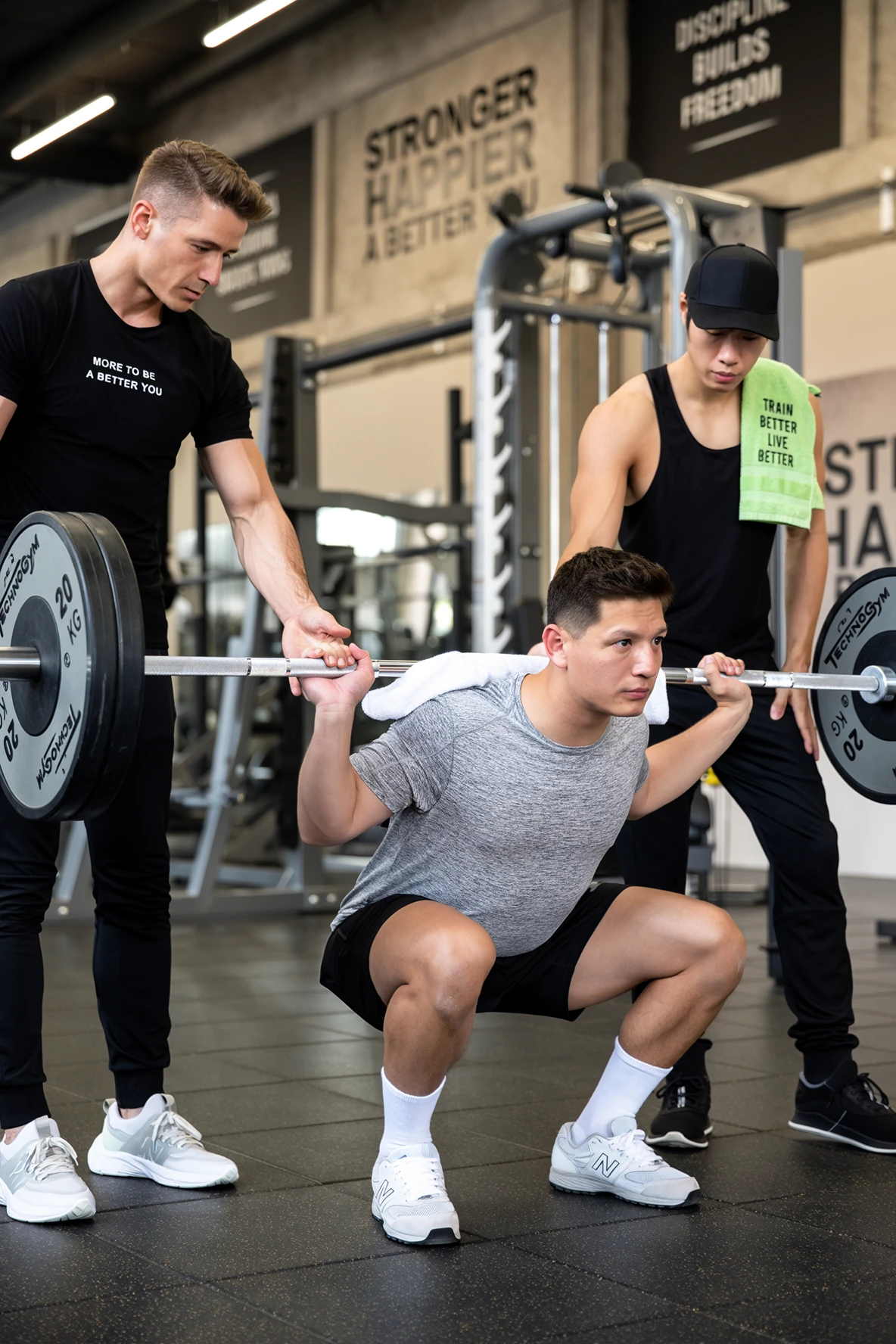 AI-generated MOSS-Image output from MixVio's gallery (1184×1776). Short slogans on big surfaces render well; small lines need proofreading.
Step 4b: a non-square canvas
The same helper works for portrait or landscape output because both halves come from W and H. Set W, H = 768, 1024 and a box at x=0, y=0 that is 768 wide becomes [-512, -384, ...]: the x shift is now 384, not 512. If you forget to change the constant, the check will flag boxes that run past the real edge, which is the point of keeping the size in one place. Whatever size you pick, request exactly that width and height when you generate.
Step 5: send it as the prompt
The README's Python example passes the layout as a string with json.dumps(layout, ensure_ascii=False) and sets the height and width to match the canvas. Use ensure_ascii=False if your text items contain Chinese or Japanese, so the characters reach the model as written rather than as escape sequences. In the Gradio demo you paste the same JSON into the prompt field and set the matching size.
What the layout does not fix
- It is still text-to-image. The model does not edit an existing image or take a reference image. Changing one word means regenerating.
- Small text still slips. Boxes control position, not spelling. Proofread every line of the output.
- Keep text realistic. A tiny box with a long sentence asks for glyphs that won't fit at the requested size.
Running it without a GPU
The README's quick start assumes an NVIDIA GPU. If you don't have one, hosted routes exist. On MixVio, a JSON prompt with an items array is sent as written without prompt expansion, output is PNG at 1K or 2K in seven ratios, and there is no seed field, so reruns are not reproducible there. If you want to test your generated layouts that way, Create with MOSS-Image.
Recap
Draw boxes the normal way, convert them in code, keep W and H in one constant, and run a check before every generation. The script above is about 50 lines and removes the two classic layout bugs, swapped axes and corner-based coordinates, from your workflow.
About the author
- MixVio AI is a multimodal creative workspace for generating and editing images, video, and audio with leading AI models and practical creative tools.
Comments
Join the discussionNo comments yet. Be the first to comment.