Keep-and-Change: Edit Photos With AI Prompts (No Brush)
Short answer: To edit a photo with AI without a brush or mask, upload a photo you already own, write one instruction that names what must stay (face, product, room) and the single change you want, then generate and inspect the still before you download. Keep-and-change is the fastest path when the shot is already right and you only need one local fix—hair, a label, lighting—not a blank-canvas redraw and not motion.
Most people still reach for a selection tool first. That habit makes sense in Photoshop: Adobe’s Generative Fill workflow asks you to define a region, then describe what should appear inside it. Canva Magic Edit similarly expects a brush, click, or “all” selection before the prompt. Those tools are strong—and selection-first. Keep-and-change flips the order: the lock lives in the sentence, so you do not have to paint a region before you ask for the edit.
This article is about still-image editing only. You start from a real photo, keep identity and layout on purpose, and leave with a still result.
What keep-and-change actually means
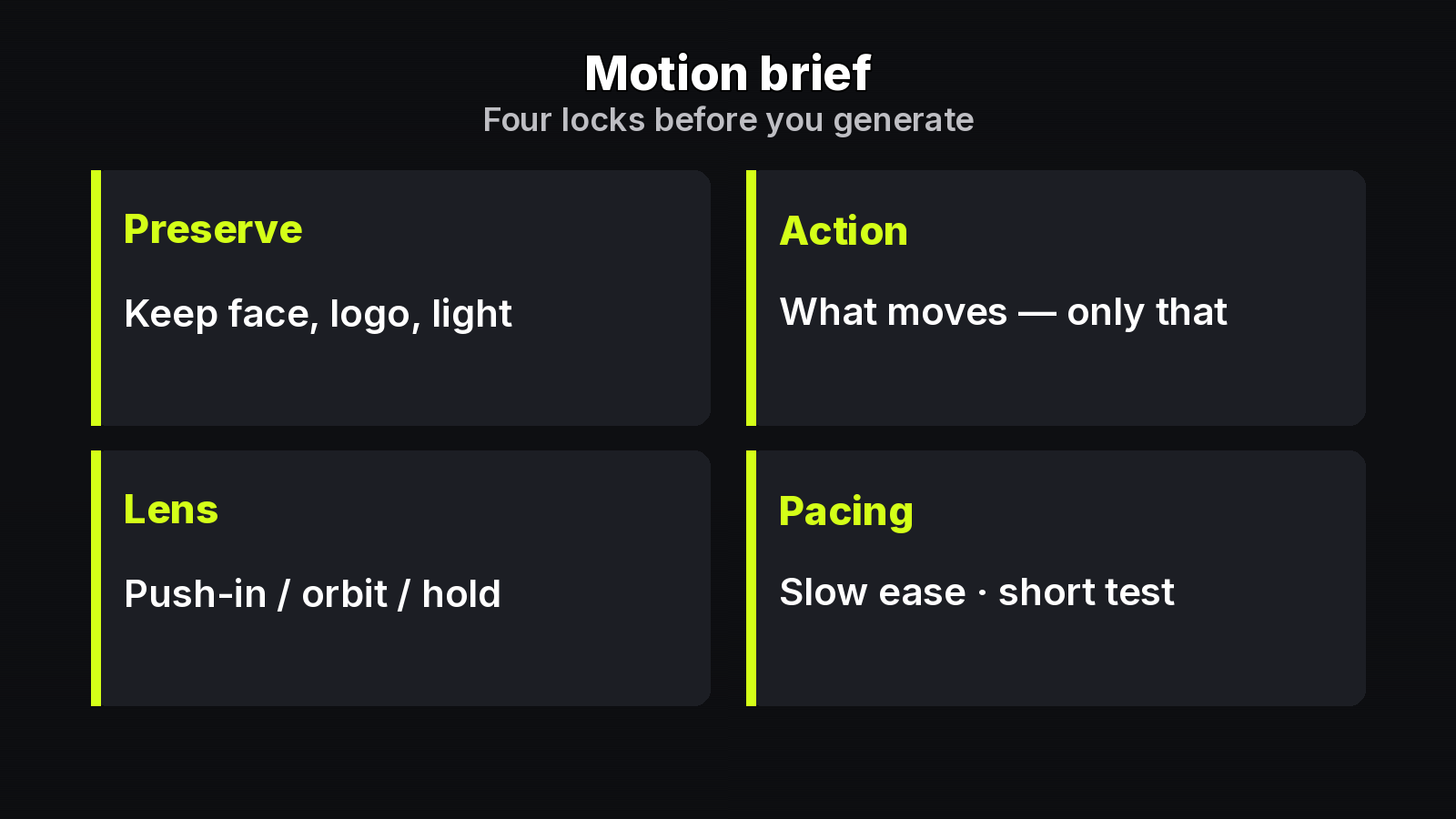
A useful prompt does two jobs in one line:
- Keep — face, wardrobe anchors, product silhouette, room geometry, logos you must not invent.
- Change — one named edit: hairstyle, label color, sky warmth, a single object state.
Vague asks like “make it better” hand the model a guessing game. Explicit keep language reduces surprise. You still inspect the output; unrequested details can shift. The method is instruction discipline, not magic.
Keep-and-change is also not a layers-and-sliders desktop editor, not text-to-image from a blank canvas, not a full-scene restyle when you wanted one local fix, and not a motion workflow. If you need a transparent cutout, a pixel upscale, or a broader restyle, use a tool built for that job after (or instead of) the local edit. Prompt-first keep lock shines when the photo is already almost right.
A simple workflow: upload, describe, inspect
1. Upload photos you own or are authorized to edit
Start with JPEG, PNG, or WebP portraits, product shots, or rooms. One image is enough for a run; some edit models accept multiple references when you need tighter identity lock. Do not paste random web photos you do not have rights to change—commercial use later depends on source rights as much as on the plan you pay for.
2. Describe the edit as keep + one change
Write the lock first, then the edit. Prefer concrete nouns over mood words. “Same woman, same navy cardigan, same bedroom; change only the hair” beats “glamorous upgrade.” If a logo or label must survive, say so. If typography must stay readable, say that too.
3. Generate, check credits, inspect, download
Confirm the credit quote before you run. Treat each successful pass as intentional. When the result lands, zoom identity, hands, product edges, and any on-image type. Download only after that pass—or tighten the prompt and run again on the same source.
Prompt-first editors such as MixVio’s AI Photo Editor follow this contract on the web: upload, describe keep-and-change, generate a private still, inspect, download. Defaults and model routes differ by product; the discipline of the prompt stays the same.
Keep-and-change prompt examples
Copy the structure, then swap the nouns for your shot.
Portrait — change hair, keep face and clothes
Keep the same woman, face, navy cardigan, white collar, gold cross necklaces, hoop earring, and bedroom. Change only the dark wavy hair to a straight platinum blonde bob. Do not change identity or clothes.
Why it works: identity and wardrobe are locked; the hair change is singular; the room is named so the background does not drift into a new set.
Product — change label, keep the tin
Keep the same tin, lid, table, and lighting. Change only the front label color to matte sage green with the same brand name layout. Do not invent a new logo or alter the lid engraving.
Why it works: you avoid a reshoot while protecting brand marks. Always proof the letters after generation—generative type still needs a human eye.
Scene — warm the sky, keep the street
Keep the same street, buildings, parked cars, and people in place. Change only the overcast sky to a warm sunset glow. Do not move subjects or rewrite storefront signs.
Why it works: lighting is the one variable; layout and signage stay put. If signs matter for delivery, inspect them before you publish.
How peers approach the same job
Honest comparison helps you pick the right day for each tool.
Adobe Photoshop Generative Fill. Selection-first, non-destructive layers, deep retouch stack. Best when you already live in Photoshop and want region control plus generative fill inside that region. Official walkthrough: Adobe’s Generative Fill help for desktop.
Canva Magic Edit. Brush / click / all selection, then prompt—built for design speed inside Canva. Strong for marketing layouts where the photo is one asset among many. Official steps: Canva’s Magic Edit help.
Prompt-first keep-and-change (browser). No brush canvas required: you write what changes and what must stay. Useful for a quick local fix without opening a full desktop project. MixVio’s public AI Photo Editor routes keep-and-change through several image models so you can trade keep lock, prompt control, layout fidelity, or speed. Credits are quoted before a run; failed runs cost no credits. Eligible Google-connected accounts get 40 welcome credits once (7-day validity). Uploads and results stay in a private workspace.
Use peers when you need layers, brand templates, or a brushed region. Use keep-and-change when the sentence is enough and you want to stay on a still photo.
When not to use this workflow
- Broader restyle or rebuild — if the whole mood must change, an image-to-image restyle path fits better than a one-detail lock.
- Transparent background — use a background remover, then composite.
- Resolution only — upscale after the creative edit is approved.
- Motion — do not force a photo editor to “become video.” Keep stills in the still tool.
Those adjacent jobs are separate products for a reason. Mixing them in one prompt usually produces neither a clean local edit nor a usable animation.
Delivery checklist
Before you ship the file:
- Face / product identity matches the source.
- Requested change is the only intentional difference.
- Logos, labels, and fine type survive (or were intentionally updated and proofed).
- No accidental extra fingers, melted jewelry, or rewritten signs.
- Rights cover the source photo and the intended use (evaluation vs commercial).
Keep-and-change is a writing habit as much as a button click. Name the lock. Name the one change. Inspect the still. That is the whole method—whether you brush a region in a desktop suite or skip the brush and put the lock in the prompt.
About the author
- MixVio AI is a multimodal creative workspace for generating and editing images, video, and audio with leading AI models and practical creative tools.
Comments
Join the discussionNo comments yet. Be the first to comment.