Keep the Look Locked: Turn a Still Into Video With Motion Prompts
Short answer: To turn a still into short video without redrawing the shot, upload a photo you already own, write a prompt that describes only motion and camera (not a new scene), pick format and model, confirm the credit quote, then generate and review a private MP4. Image-to-video keeps composition, subject, palette, and style rooted in the reference; motion, camera, and atmosphere layer on top. That lock-first pattern is the fastest path when the frame is already right and you need Reels, Shorts, TikTok, or ads motion—not a blank-canvas text-to-video invent, and not a still-only local photo edit.
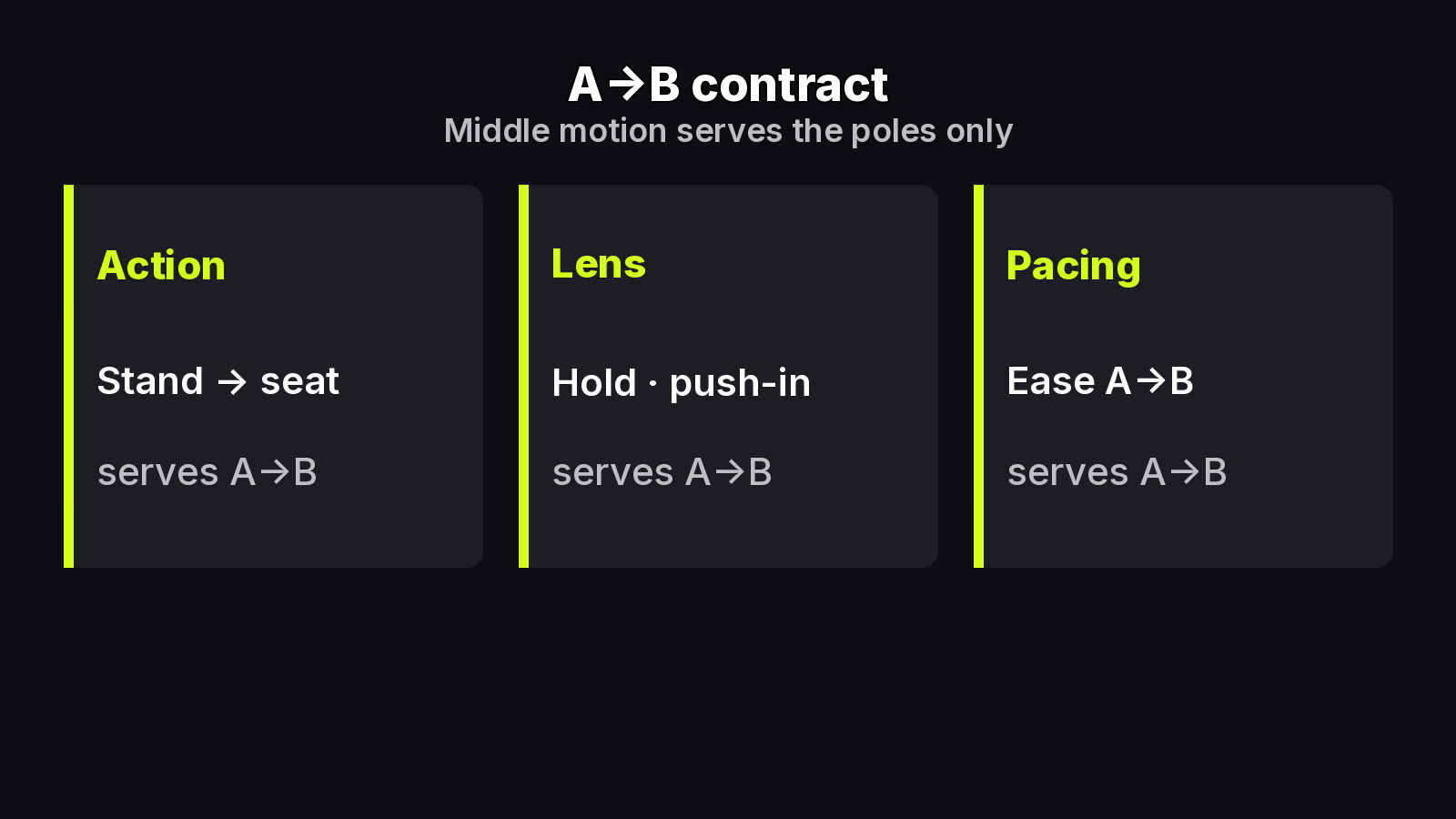
Most failed “animate this photo” runs happen for one reason: the prompt rewrites the picture. People paste wardrobe color, background lore, and mood essays into a field that should only say what moves. Runway’s Image to Video prompting guide is blunt about the split of labor: the image defines composition, subject, lighting, and style; the text should focus on motion, camera work, and temporal progression. Official video APIs follow the same idea—Luma’s video generation docs show image-to-video keyed from a start frame (or keyframes) plus a motion prompt, not a full scene redesign. When your brief already has a locked plate, treat the still as law and the prompt as direction.
This article stays on image-to-video. You start from a real reference, keep the look locked on purpose, and leave with a short clip—not a brush-based photo edit and not a from-scratch text scene.
Why stills get “redrawn”
Image-to-video tools are not slideshow makers. They invent plausible motion between (or after) frames. That inventiveness is useful for hair wind, fabric sway, product orbits, and camera push-ins. It becomes expensive when the model also invents a new face, a new label, or a new room because your prompt invited a redraw.
Common failure modes:
- Scene essays in the motion box — “cinematic portrait of a woman in a neon alley…” when the alley and wardrobe already exist in the upload.
- Fighting the plate — asking for stillness while the source shows motion blur, or asking for a hard orbit while the crop leaves no room to move.
- Skipping the review — shipping identity or logo drift because the first take looked “alive enough.”
Peers that document lock-first prompting make the same point from different stacks. Runway’s help center tells you not to re-describe elements already in the image. Luma’s generation docs treat the uploaded frame as an anchor for the clip. Both assume you chose image-to-video because the subject is already decided. If you needed a brand-new world, you would open text-to-video instead.
A simple workflow: upload, describe motion, generate
1. Upload an image you own or are authorized to animate
Start with JPEG, PNG, or WebP: product shots, portraits, lifestyle frames, storyboard stills, owned concept art. Clear lighting and a readable subject travel better into motion. Skip heavy compression, tiny subjects, and random web photos you do not have rights to animate—commercial use later depends on source rights as much as on the plan you pay for.
2. Describe motion and camera; pick format and model
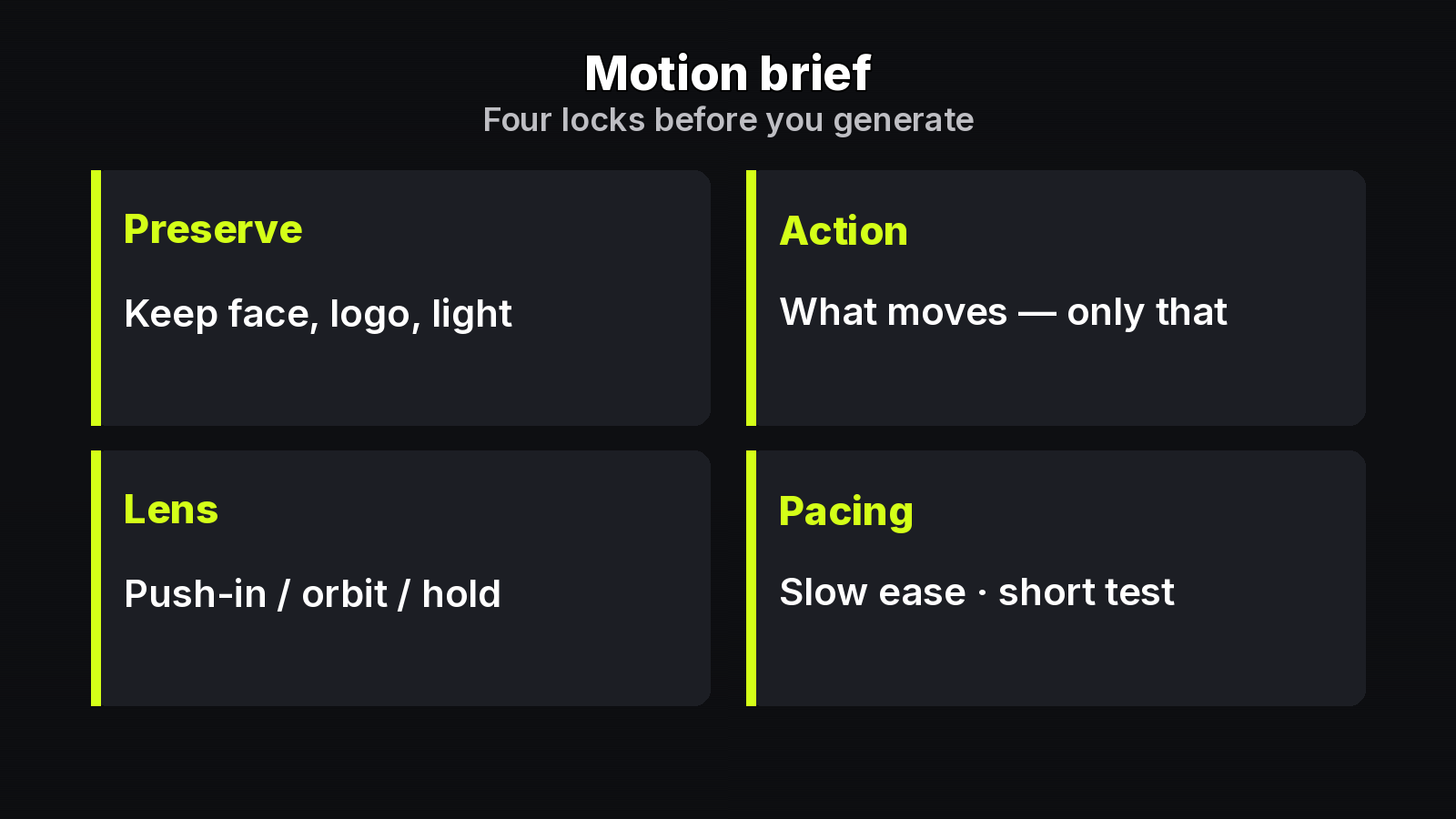
Write action and camera, not a second art brief. Prefer “slow push-in, fabric and hair in light wind” over “beautiful cinematic influencer energy.” Set aspect ratio before you generate so the private file matches the channel: 9:16 for TikTok / Reels / Shorts, 16:9 for YouTube or ads, 1:1 when the placement wants square.
Model choice is a motion-style choice on the same locked frame. Public routes commonly named for this job include Seedance, MiniMax H3, Kling, Veo, Wan 3.0, PixVerse V6, and Gemini Omni Flash. Compare a few takes on one still when the brief is picky about camera boldness versus polish; do not change models mid-prompt just to “see what happens” without a hypothesis.
3. Confirm credits, generate, review the private MP4
Confirm the credit quote before you run. On MixVio’s public Image to Video page, an example default magnitude is 5 seconds · 480p · 23 credits on Seedance 2.0; the quote changes with model, duration, and resolution. Failed runs cost no credits. Free outputs are for evaluation, not commercial publishing; paid-plan commercial use follows the Terms of Service and each model provider’s rules. Uploads, prompts, and finished videos stay as private workspace assets—still review every export before you share it outside that workspace.
When the clip lands, scrub identity, logos, packaging type, hands, and edges. Approve, download the private MP4, or tighten the motion sentence and run again on the same reference.
Tools built for this lock-first loop—including MixVio’s Image to Video—follow the same contract on the web: upload a reference you own, describe motion, set format and model, see credits first, generate a private short, inspect, download. Defaults differ by route; the discipline of the prompt stays the same.
Motion prompt examples you can adapt
Copy the structure. Swap nouns for your plate. Keep visual inventory out of the sentence unless you must introduce something that is not in the frame.
Portrait — micro-motion for Reels
Slow push-in on the subject. Soft breeze moves hair and fabric only. Natural blinks. Locked-off background. Warm daylight hold. Continuous seamless shot.
Why it works: camera and fabric motion are named; identity and room are left to the still; “continuous seamless shot” reduces surprise cuts on short durations.
Product — slow orbit for ads
Camera slowly orbits the product on a clean table. Subtle specular shift on the metal edges. Label stays readable. No new props. Soft studio ambience. Continuous shot.
Why it works: the orbit is the one idea; packaging fidelity is called out so the model does not invent a prettier tin. Always proof letters after generation.
Storyboard pitch — push-in for client preview
Gentle dolly-in toward the hero frame. Light atmospheric haze drifts across mid-ground. Characters hold pose. No cut. Cinematic but restrained motion for a five-second pitch preview.
Why it works: clients see camera intent without a reshoot; pose lock keeps the approved board recognizable.
When to switch modes (short contrast)
Stay on image-to-video when one owned still is the brief. Switch only when the job changes:
- Text to Video — you do not have a locked frame and need to invent the scene from words.
- Reference to Video — you need several reference images combined into one scene (multi-image consistency), not a single start still.
- Motion Control — you already have a performance video and want that motion transferred onto a character image.
Those adjacent modes are useful. They are not substitutes for “same photo, add directed motion.” Mixing them in one prompt usually produces neither a faithful lock nor a clean performance transfer.
Delivery checklist
Before you publish or hand the file to a client:
- Composition and subject still match the reference—the clip feels directed, not redrawn.
- Motion and camera match the prompt; nothing extra stole the frame.
- Logos, fine type, packaging, and identity survive close inspection (or were intentionally accepted as creative direction only).
- Source rights cover faces, brands, and the intended channel.
- Commercial publishing only on a paid plan, and only within Terms of Service plus model-provider rules; Free outputs stay evaluation-only.
- Export reviewed from the private workspace before any public post.
Keep the look locked. Prompt only the motion. Compare models on the same frame when taste matters. Inspect the MP4. That is the whole method—and it works whether you are shipping a portrait micro-motion for Shorts or a five-second product orbit for ads.
About the author
- MixVio AI is a multimodal creative workspace for generating and editing images, video, and audio with leading AI models and practical creative tools.
Comments
Join the discussionNo comments yet. Be the first to comment.